Windows 8, Hyper-V, VirtualBox, Vagrant and Hanging on Boot

 Introduction

I’ve recently been playing around with Vagrant to allow Nancy contributors to easily test their changes on Mono, even if they don’t have much (or any) experience with Linux or Mono itself (more on this soon). Vagrant allows scripts to be created to quickly and easily spin up virtuals with a certain configuration, and just as easily tear them down and destroy them when you’re done (which is just as important if you’re using a machine with limited SSD space).

Vagrant sits on top of actual Virtualisation software such as VirtualBox or VMWare (but no Hyper-V support), but it defaults to VirtualBox, and that’s the only provider out there that doesn’t involve spending money as both VMWare, and the Vagrant plugin for it, are commercial.

The Problem

Vagrant installed fine, VirtualBox installed fine, everything appeared to be working and could spin up VMs just dandy, but when I rebooted the machine I was stuck with the “spinning dots of doom”, and the only way to get the computer back was restoring from system restore and ditching VirtualBox 🙁

I tried 3 different machines, two failed the same way and the third worked fine; the only difference being the working machine didn’t have Hyper-V enabled in Win8, but I couldn’t remove it from the other two as it’s required for Windows Phone 8 development, and I use it for several other virtuals as the performance is excellent. Stuck between a rock and a hard place 🙁

The Solution

After trying multiple old versions of VirtualBox, and blind alleys that suggested disabling the hypervisor on startup would fix it (it didn’t), I finally tracked down the problem to be the networking drivers it installs. VirtualBox has three networking modes: NAT (the default), Bridged and HostOnly – with the latter two requiring separate drivers. Unchecking both sets of drivers in the installer and everything works fine:
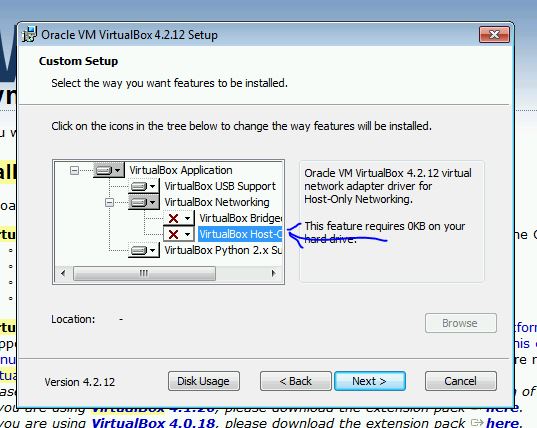
VirtualBox


Vagrant uses NAT by default anyway, and that gives you internet access from the VMs, so there shouldn’t be too many situations where you need to use the other two options anyway. It even works side-by-side with Hyper-V too, so I can have my normal Hyper-V virtuals running while firing up Vagrant scripts on VirtualBox. It’s obviously a bit slower this way, as it can’t use it’s own HyperVisor, but it seems fast enough, and less hassle than having to disable Hyper-V and reboot every time I wanted to use Vagrant (or vice versa when I wanted to use Hyper-V).

Now, back to those Nancy scripts..

Switching from Cygwin to MSysGit – Git Thinks Everything Has Been Modified :-(

Introduction

I’ve been dabbling with git lately, contributing to the Nancy project, and I’ve been happily working away using Cygwin, which I already had installed, and all was fine and dandy. Things went slightly awry, however, when I decided to give MSysGit a whirl. Typing “git status” on my (unmodified) repository, that I’d previously used with Cygwin, showed every single file as modified.. argh!

Faking FileModes

A quick “git diff” showed this output for every file:

old mode 100755
new mode 100644

A brief Google later and it turns out that MSysGit “fakes” filemodes (unix permissions – the 755/644 part of the log above), whereas Cygwin, which is a more “complete” Linux implementation on Windows, does them “properly”. Now, by default, git tracks the filemode and considers it a change whenever it’s modified, so the “fake” modes coming back from MSysGit were making everything appear modified.

Solution

Luckily, the solution is very simple – tell git to stop tracking filemodes! I set this as a global option, but also had to set it on the repository too as it has a default value set in there. The following two commands sorted it out:

git config --global core.filemode false
git config core.filemode false

Conclusion

A simple fix to a, potentially, obscure problem; but I think if you’re using msysgit to work on non-Windows projects, that may have filemodes set for executable scripts, then this workaround may be required too. Apparently MSysGit does attempt to fake the filemode based on file extension, so things that *look* like they should be executable are faked to have +x, but it’s not going to be perfect.

Quick Add Reference Extension for Visual Studio 2010

Introduction

I mentioned this on Twitter last week, but completely failed to find it again today, so thought it was worth blogging for future reference Smile 

As I have blogged about in the past, the Add Reference dialog in Visual Studio is still pretty terrible in VS2010. Various extensions have made it more bearable by providing search support and other enhancements, but now you can avoid it completely (most of the time) with an excellent extension from Clarius Consulting:

http://visualstudiogallery.msdn.microsoft.com/en-us/dc06b54c-b6c4-4cf5-8203-a09c6979e881

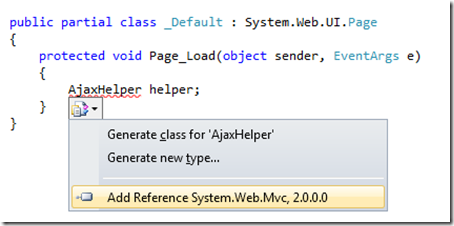
Anyone that’s used ReSharper will instantly recognise the approach – just hit Ctrl+. for the VS2010 Smart Tag on something you don’t currently have referenced, and voila – an option to automatically add the reference and the corresponding using statement:

quickaddreference

Simple and effective – I haven’t had any problems with it since I installed it last week – go and give it a whirl Smile

Stack Overflow – Share Your Flair – Now in PNG!

Introduction

This morning I was taking a look at the new (ish) meta stackoverflow site, and noticed a thread asking “Can we get flare as an image?”. It seemed like a good idea, especially for forum signatures and the like, so I thought that seeing as I’d recently updated the WordPress widget, that I’d try and put something together.

Pretty as a Picture (or not)

As C# is generally my weapon of choice these days, I was originally going to knock something together in ASP.Net. I was thinking something along the lines of rending a WPF control to a bitmap, and emitting that as an image. I decided against that approach because:

  1. ASP.Net hosting is generally more expensive – most people I know seem to stick to *nix hosting.
  2. Rendering WPF to a bitmap doesn’t work in partial trust scenarios; so it might not even work on ASP.Net hosting anyway.

So, feeling in a masochistic mood, I thought I’d knock something together in lovely old PHP; the results of which look something like this:

Steve Robbins' StackOverflow Profile

Or, by passing in a userid on the querystring:

Marc Gravell's StackOverflow Profile

You can test  it with your own details by changing the userid on the following url:

https://www.grumpydev.com/imageFlair/imageFlair.php?userid=1

Images are cached (for 30minutes by default) and all of the StackOverflow data is taken from the JSON feed, so the strain on SO should be fairly minimal.

The Code

You can use the script hosted on here if you want (although I might have to change my mind on that if the load gets too high), or you can download the code and run it on your own box:

https://www.grumpydev.com/imageFlair.zip

Although it will run just fine “out of the box”, the code is pretty flexible; with plenty of configurable options for fonts, colours, positioning, background images, caching time etc. Take a look in config.php and you’ll hopefully find you can change everything you want to without having to delve into the main code.

Bear in mind that I am far from a PHP expert, and this was put together in a few hours, so please don’t laugh too much if you do take a peek at the source 🙂

Font Support / Licensing

The text is rendered to the bitmap using a TrueType font of your choosing, which gives us some nice flexibility. Unfortunately though, none of the fonts that we generally take for granted, such as Arial, Verdana etc. come with any distribution rights; so I can’t include any in the source archive. This might not be a problem if you already have your favourite TrueType fonts installed; but if you don’t you can get a “free” version of several core fonts from http://sourceforge.net/projects/corefonts. You just need to extract the archives using WinRAR, or 7zip, or something of that ilk; then just drop the TTF file into the source code directory.

That’s it – hope someone finds it useful 🙂

Update – Bug Fixes and Pretty URLs

After some feedback from the meta question I’ve fixed a stupid bug in the gravatar code, so now it should work for people who have a 1 in their gravatar hash (don’t ask! :-)).

I’ve also enabled “pretty urls” on the hosted version, so now you can go to a url like:

https://www.grumpydev.com/imageFlair/658.png

And you’ll get the PNG for the corresponding userid. I do intend to expand it to include Flair for the other sites in the “Stack Overflow” family, but I haven’t had chance yet.

For those that are interested, this is the .htaccess file that enables the pretty urls, and also reduces the cache time on pngs to 1 second:

<IfModule mod_rewrite.c>
RewriteEngine On
RewriteRule ^(.*)\.png$ imageFlair.php?userid=$1 [L]
</IfModule>

<IfModule mod_expires.c>
ExpiresActive On
ExpiresByType image/png "access plus 1 seconds"
</IfModule>

Update 2 – Supporting the Whole Family

I’ve added an optional parameter to specify which site’s information to display. The “pretty” url format now looks like this:

http://[ur]/[mode]/[id].png

Where [mode] is one of:

So for Jeff (id number 1 everywhere is easy :-)) we end up with:

Stack Overflow Meta Server Fault

The htaccess file now looks like this:

<IfModule mod_rewrite.c>
RewriteEngine On
RewriteRule ^(.*)/(.*)\.png imageFlair.php?mode=$1&userid=$2 [L]
RewriteRule ^(.*)\.png$ imageFlair.php?userid=$1 [L]
</IfModule>

<IfModule mod_expires.c>
ExpiresActive On
ExpiresByType image/png "access plus 1 seconds"
</IfModule>

Source ZIP is updated with all the latest changes. Hopefully that will be it for the time being! 🙂

Updated: Stack Overflow WordPress Widget

Introduction

Just a quick post to say I’ve updated my Stack Overflow WordPress Widget to implement some basic caching. I’m still in the process of converting it to the new JSON service that SO have provided; but in the meantime this should cut down on the amount of traffic it uses.

You should be able to upgrade straight from the admin section of your blog; but you can also grab it from the WordPress Plugin Directory.

The cache time is configurable in the widget settings, and defaults to 30minutes. It attempts to locate your temp directory, then creates a unique filename cache in there; so there’s no need to chmod a cache file to get it to work.

I’ll hopefully get a JSON version working in the next few days, but if anyone has any problems feel free to give me a shout from the contact page.

Update: It seems the JSON version was easier than I thought 🙂 I’ve uploaded v2.0.0 that still includes the caching changes, but also uses the “official” JSON feed. If you have already used the cached version you might might need to delete the cache file to make it re-download the raw data.

The only “downside” to the JSON version is it requires json_decode, so you must have PHP 5.2.0 or above. If you can’t satisfy this requirement then you’ll be better off with the previous version.