
Introduction
I’ve recently been playing around with Vagrant to allow Nancy contributors to easily test their changes on Mono, even if they don’t have much (or any) experience with Linux or Mono itself (more on this soon). Vagrant allows scripts to be created to quickly and easily spin up virtuals with a certain configuration, and just as easily tear them down and destroy them when you’re done (which is just as important if you’re using a machine with limited SSD space).
Vagrant sits on top of actual Virtualisation software such as VirtualBox or VMWare (but no Hyper-V support), but it defaults to VirtualBox, and that’s the only provider out there that doesn’t involve spending money as both VMWare, and the Vagrant plugin for it, are commercial.
The Problem
Vagrant installed fine, VirtualBox installed fine, everything appeared to be working and could spin up VMs just dandy, but when I rebooted the machine I was stuck with the “spinning dots of doom”, and the only way to get the computer back was restoring from system restore and ditching VirtualBox 🙁
I tried 3 different machines, two failed the same way and the third worked fine; the only difference being the working machine didn’t have Hyper-V enabled in Win8, but I couldn’t remove it from the other two as it’s required for Windows Phone 8 development, and I use it for several other virtuals as the performance is excellent. Stuck between a rock and a hard place 🙁
The Solution
After trying multiple old versions of VirtualBox, and blind alleys that suggested disabling the hypervisor on startup would fix it (it didn’t), I finally tracked down the problem to be the networking drivers it installs. VirtualBox has three networking modes: NAT (the default), Bridged and HostOnly – with the latter two requiring separate drivers. Unchecking both sets of drivers in the installer and everything works fine:
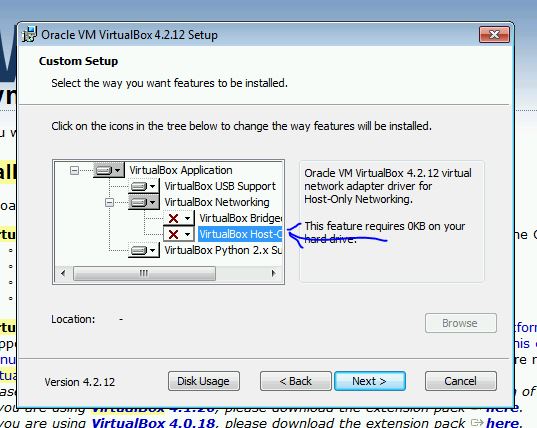
Vagrant uses NAT by default anyway, and that gives you internet access from the VMs, so there shouldn’t be too many situations where you need to use the other two options anyway. It even works side-by-side with Hyper-V too, so I can have my normal Hyper-V virtuals running while firing up Vagrant scripts on VirtualBox. It’s obviously a bit slower this way, as it can’t use it’s own HyperVisor, but it seems fast enough, and less hassle than having to disable Hyper-V and reboot every time I wanted to use Vagrant (or vice versa when I wanted to use Hyper-V).
Now, back to those Nancy scripts..
Glad I searched for this before going down the same path you did. Hopefully this will also play nice with other projects that require virtualbox, like genymotion.
Thanks for the tip!
I’ve been using Windows 8 as my main OS for 2+ months and finally got around to installing VirtualBox. This would be the final step to having Windows 8 do everything (and more) for me which Windows 7 was previously.
I already had Hyper-V running so I could use Visual Studio and emulate a Windows Phone or Windows tablet for app testing. Installing VirtualBox, of course, led me to the same problem of spinning dots on a reboot and Windows 8 going no further.
I found another solution to the problem which does not involve returning to a previous restore point. Sometimes returning to a previous restore point can be painful and best not used if possible.
1. Boot in safe mode
2. Control Panel->Programs and Features.
3. Then using the option on the left “Turn Windows features on or off” deselect Hyper-V.
4 Next, performing a reboot, Windows 8 will go through the process of removing Hyper-V. This may involve an automatic reboot or two – I didn’t watch my computer during this process.
With Hyper-V disabled, Windows 8 will now boot normally.
I mainly wanted to document here what I did to get back to a bootable OS in case others don’t have a restore point to revert to, that there is another work-around.
The next steps are more difficult, determining if VirtualBox without Bridged and HostOnly networking will work for me, if I want to try a pure Hyper-V configuration…if I really NEED additional virtual machines for non-microsoft OS’s on this laptop or if it is just a “would be nice” sort of thing… 😉